

How to Choose the Best Free Data Recovery Software
Choosing Data Recovery Software Free is not simply a matter of downloading the highest-rated tool. A failed hard drive may click, disconnect, or appear as unallocated space. Each symptom requires a different response.
The risks are measurable. IBM’s Cost of a Data Breach Report 2024 recorded a global average breach cost of $4.88 million. Veeam’s 2024 Data Protection Trends Report found that 92% of organizations experienced an unexpected outage during the previous year. These reports focus on organizations, not household laptops. Still, they show why recovery planning deserves careful attention.
Storage expert Greg Schulz, founder of StorageIO, states, “Data protection is not data recovery.” That distinction matters. Free software may recover deleted photos from a healthy USB drive. It may struggle with encrypted volumes, overwritten sectors, failing disks, or corrupted file systems. Do not install recovery software onto the affected drive. Use another disk for recovered files. A small mistake can reduce the remaining chances.
This guide compares Data Recovery Software Free options through practical tests, including scan speed, preview accuracy, supported file systems, recovery limits, and privacy terms. It also considers independent documentation and vendor transparency. Marketing claims can sound impressive. Evidence matters more.
No tool works every time. That is uncomfortable, but honest. If a drive makes repeated clicking sounds, stop scanning and consider professional laboratory recovery. For ordinary deletion or formatting mistakes, a carefully chosen free application can still be useful, provided the user acts quickly and avoids writing new data.
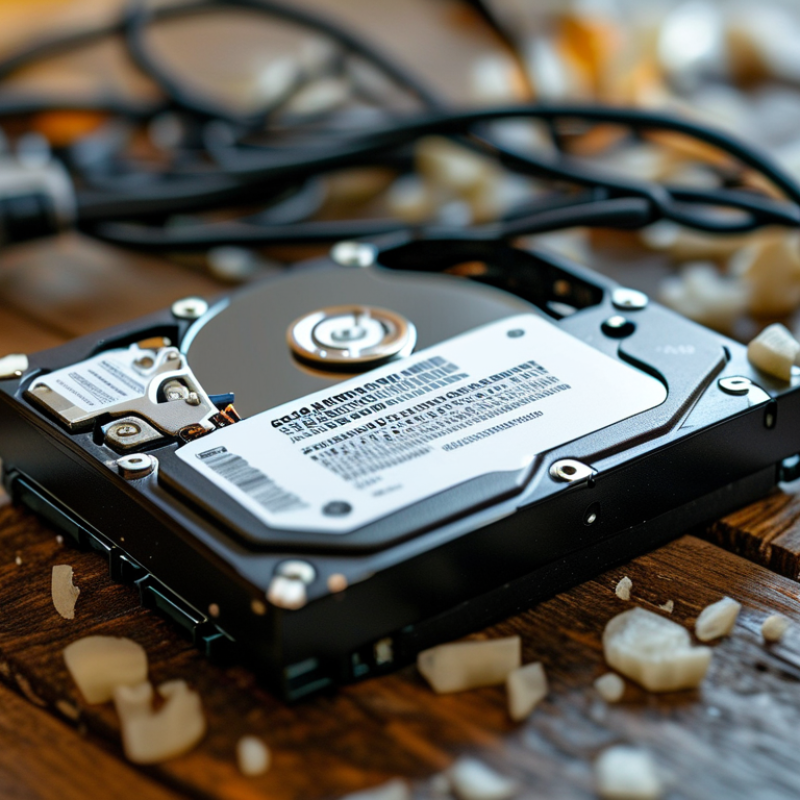
Define Your Data Recovery Needs and Recovery Scenarios
Before choosing free data recovery software, define what disappeared and where it was stored. A deleted document on a healthy hard drive needs a different approach from a formatted memory card. Check whether the device still appears in the operating system. Note the file type, approximate size, deletion time, and original folder. These details help you judge whether a tool fits your situation.
Stop using the affected storage device immediately. New files may overwrite recoverable data. If the drive makes clicking sounds, disconnect it instead of running repeated scans. For ordinary deletion, choose software that supports your file system and offers a preview before recovery. A preview can reveal whether file names, images, or document contents remain usable. Recovery should save files to another drive, never the damaged source.
More serious scenarios require careful limits. A lost partition may need a deep scan, while an encrypted or physically failing drive may exceed free software’s practical ability. Check scan reports, recovery size limits, privacy terms, and whether the program creates a disk image. I have seen people trust a long progress bar too quickly; time does not prove quality. A tool that finds thousands of fragments may still produce unusable files. Test it with a few recoverable items first, and record each step. Your choice should match the damage, file system, storage condition, and value of the data.
How to Choose the Best Free Data Recovery Software - Define Your Data Recovery Needs and Recovery Scenarios
| Recovery Scenario | Typical Cause | Storage Device | Common File Systems | Required Recovery Capability | Recommended First Action | Priority | Important Consideration |
|---|---|---|---|---|---|---|---|
| Accidentally Deleted Files | Files removed from the file manager or emptied from the recycle or trash folder. | Internal drive, external drive, memory card, or USB flash drive. | NTFS, FAT32, exFAT, APFS, or ext4. | Deleted-file scanning, file preview, file-type filtering, and recovery to another location. | Stop saving new data to the affected storage device and begin a read-only scan. | High | Deleted data can be overwritten by new files, temporary files, or system activity. |
| Formatted Partition | A partition was formatted intentionally or by mistake. | Hard disk drive, solid-state drive, external drive, or removable media. | NTFS, FAT32, exFAT, APFS, HFS+, or ext4. | Lost-partition scanning, deep scanning, file-system reconstruction, and folder-structure recovery. | Do not create a new partition or copy files onto the formatted volume. | High | Quick formatting may leave recoverable data, while full overwriting can make recovery impractical. |
| Lost or Deleted Partition | Partition table damage, accidental repartitioning, or an interrupted disk operation. | Internal disk, external disk, RAID member, or removable storage. | NTFS, FAT32, exFAT, APFS, HFS+, ext4, or other supported formats. | Partition discovery, disk-structure analysis, boot-sector detection, and volume reconstruction. | Avoid initializing the disk when the operating system displays an “unallocated” or “unknown” status. | High | Recovery becomes more complex when partitions overlap or the original disk layout is unknown. |
| Corrupted File System | Unsafe removal, power failure, software errors, malware activity, or damaged file-system metadata. | Hard disk drive, SSD, external drive, USB drive, or memory card. | NTFS, FAT32, exFAT, APFS, HFS+, or ext4. | Raw recovery, metadata analysis, file-signature search, and support for unstable volumes. | Do not repeatedly repair or write to the volume before making a sector-level copy when possible. | High | Recovered files may lose original names, folders, or timestamps during raw scanning. |
| Inaccessible or Unrecognized Drive | The drive is not mounted, displays an incorrect capacity, or is reported as unreadable. | External hard drive, SSD, USB flash drive, or memory card. | Any supported file system, including damaged or unidentified formats. | Device detection, read-error handling, sector imaging, and recovery from a disk image. | Check cables and power only once; avoid repeated reconnecting if the device makes unusual noises. | High | Mechanical noises, severe read errors, or rapid device failure may require professional assistance. |
| Failed Solid-State Drive | Controller failure, flash-memory wear, firmware problems, or power-related damage. | Internal or external solid-state drive. | NTFS, exFAT, APFS, ext4, or another supported format. | Stable-device detection, image-based recovery, and support for TRIM-aware recovery limitations. | Power down the device and avoid repeated scanning or repair attempts. | High | TRIM and garbage collection can permanently remove deleted blocks from many SSDs. |
| Memory Card or USB Drive Loss | Accidental deletion, unsafe removal, camera errors, corruption, or frequent reuse. | SD card, microSD card, USB flash drive, or portable media. | FAT32 or exFAT are common, with other formats possible. | Photo and video signature scanning, removable-media support, and preview before recovery. | Remove the card or drive and use a write-protected adapter when available. | High | Continuing to record photos or videos can overwrite recoverable content quickly. |
| Photo and Video Recovery | Accidental deletion, camera formatting, file corruption, or interrupted transfer. | Camera card, phone storage, external drive, or computer drive. | FAT32, exFAT, NTFS, APFS, or ext4. | File-type selection, thumbnail preview, large-file handling, and recovery of common media formats. | Stop recording or editing on the source device and save recovered media to a separate drive. | High | Some fragmented videos may be only partially playable after recovery. |
| Document and Office File Recovery | Accidental deletion, application crashes, sync conflicts, or storage corruption. | Computer drive, external drive, USB drive, or network-synchronized local folder. | NTFS, exFAT, FAT32, APFS, or ext4. | File-name search, extension filtering, preview, and preservation of recovered file metadata where possible. | Check temporary files, automatic recovery folders, and backups before scanning the storage device. | Medium | A recovered file may exist but still require repair if its internal structure is damaged. |
| Recovery from a Disk Image | The original storage device is unstable, has bad sectors, or must be preserved for later analysis. | Failing hard drive, SSD, memory card, or forensic image file. | Any file system contained in the image. | Image-file support, resumable scanning, bad-sector tolerance, and recovery without modifying the source. | Create a sector-level image first and perform scans on the copy rather than the original device. | High | The destination must have enough free space to store the image and recovered files. |
| Recovering from a System That Will Not Boot | Operating-system corruption, damaged boot records, failed updates, or a faulty system disk. | Internal computer drive or removable boot media. | NTFS, APFS, ext4, or another system-supported format. | Bootable recovery environment, offline scanning, and access to files without starting the installed system. | Use another working computer to create recovery media and avoid reinstalling the operating system first. | High | Creating boot media or reinstalling software on the affected disk may overwrite recoverable data. |
| Large-Scale or Multi-Device Recovery | Several devices are affected by migration errors, a hardware incident, or a backup failure. | Multiple internal drives, external drives, memory cards, or disk images. | Mixed file systems and partition types. | Batch scanning, scan-result saving, resumable sessions, file filtering, and sufficient destination capacity. | Label each source device and create a recovery plan before starting scans. | Medium | Free tools may impose limits on recoverable volume, scan speed, file size, or advanced features. |
| Data with an Available Backup | Files are missing from the primary device but may exist in a cloud, local, or offline backup. | Any storage device. | Any file system supported by the backup and recovery environment. | Basic file verification and selective recovery may be sufficient. | Check the newest backup before scanning the affected device. | Low | Restoring from a verified backup is usually safer and more complete than undelete recovery. |
General rule: stop using the affected storage device, avoid saving recovered files to the same source, and use a verified backup or disk image whenever available.
Exclusive Access
Unlimited Resources
Detailed information on our products to assist you with the planning of your cable management project
Register Now
BIM Files

Step Files

Installation Manuals

User Guides

Best Practice Guides
