Main menu Open search

Blog

How to Choose Interactive Boards in 2026?

Choosing Interactive Boards in 2026 requires more than comparing screen sizes and prices. A modern classroom, meeting room, or training space needs technology that people can use confidently every day. The best display should support clear writing, smooth annotation, wireless sharing, video calls, and reliable access to digital resources. It should also fit the room, not dominate it. The room matters.

In real-world evaluations, small details often influence long-term satisfaction. A responsive pen can improve a mathematics lesson, while weak speakers may disrupt a remote presentation. Glare from nearby windows, confusing menus, and slow startup times can reduce participation within minutes. Buyers should examine operating systems, touch accuracy, connectivity, update policies, privacy controls, and compatibility with existing software. Accessibility also deserves attention, including readable interfaces, suitable mounting heights, and support for different learning needs.

No checklist is perfect. A feature-rich board may still fail if teachers receive little training or technical support. Conversely, a simpler model may perform better when its controls are familiar and maintenance is straightforward. Independent testing, hands-on demonstrations, warranty terms, and feedback from actual users can reveal problems that product brochures hide. Costs should include installation, licensing, repairs, energy use, and future upgrades. Choose for daily use. The right Interactive Boards should make collaboration feel easier, not turn every lesson into a technical experiment. This guide examines practical selection criteria, while acknowledging that each organization has different budgets, rooms, users, and expectations. The final decision should be evidence-based, but flexible enough to reflect real human behavior.
How to Choose Interactive Boards in 2026?

Define the 2026 Use Case: Classrooms, Boardrooms, or Hybrid Spaces

How to Choose Interactive Boards in 2026?

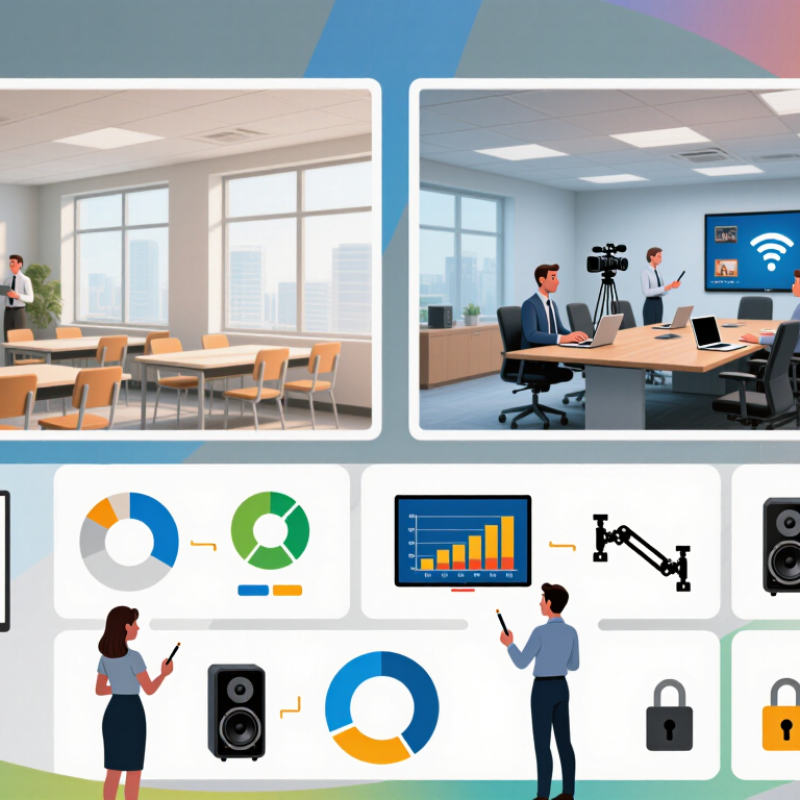
The right interactive board starts with the room, not the screen size. In classrooms, teachers need responsive writing, clear audio, and simple lesson sharing. A student should read the smallest diagram from the back row. Look for strong brightness, low writing latency, and an interface that younger users can learn quickly. A useful classroom trial includes group annotation, split-screen work, and a five-minute teacher setup. If these tasks feel slow, the board may create more work.

Boardrooms require a different rhythm. Meetings depend on sharp text, reliable video calls, and secure document access. Test the board with spreadsheets, detailed charts, and remote participants speaking at once. Built-in microphones should capture voices across the table, not only near the display. Administrators should also check software updates, user permissions, and compatibility with existing systems. Fancy tools rarely repair poor meeting habits.

Hybrid spaces demand the hardest compromise. They must serve teachers, executives, and remote guests without confusing controls. Choose consistent sharing methods, flexible camera placement, and strong echo reduction. Keep cables organized. Small details matter. A common mistake is buying the largest available panel while ignoring wall distance and viewing angles. I have seen oversized displays overwhelm narrow rooms and make collaboration less comfortable. Pilot the board with real users for several days, then record failures, delays, and accessibility concerns before approving the purchase.

Compare Display Metrics: 4K Resolution, 350+ cd/m², and 120 Hz

How to Choose Interactive Boards in 2026?

When comparing interactive boards, begin with display metrics, not attractive software features. A 4K resolution keeps diagrams, spreadsheets, and small text sharp on large classroom screens. It also gives several users clearer viewing space during group work. However, 4K alone does not guarantee a comfortable image. Poor scaling or weak content can still look disappointing.

Brightness matters in real rooms. A panel rated at 350+ cd/m² can remain readable near windows or under strong ceiling lights. I have found that glossy surfaces may create distracting reflections, even with adequate brightness. Check the board from the side, not only from the center. Color accuracy and viewing angles deserve practical testing, although specifications sometimes receive too much attention.

Tips

Play a detailed video and open a text-heavy document. Test them under daytime lighting. Compare 60 Hz and 120 Hz movement during handwriting, scrolling, and screen sharing. The 120 Hz refresh rate can make pen strokes and animations feel more fluid, but it may increase power use and cost. Do not assume faster is always better. Ask for measured brightness, not vague marketing language. Also inspect calibration, touch response, and heat after extended use. A short showroom test can mislead; longer classroom trials are safer.

How to Choose Interactive Boards in 2026? - Compare Display Metrics: 4K Resolution, 350+ cd/m², and 120 Hz
Display Metric Specification Tier Verified Technical Data Practical Effect Recommended Selection Guidance
Resolution Full HD 1,920 × 1,080 pixels; 2,073,600 total pixels Suitable for basic documents, simple presentations, and standard video content. Consider mainly for smaller displays or light-duty applications where highly detailed content is uncommon.
Resolution Quad HD 2,560 × 1,440 pixels; 3,686,400 total pixels Provides more workspace and sharper text than Full HD. Useful for medium-size boards when content detail is important but 4K is not required.
Resolution 4K UHD 3,840 × 2,160 pixels; 8,294,400 total pixels; four times the pixel count of Full HD Produces clearer fine text, diagrams, spreadsheets, images, and 4K video content. Preferred for large interactive boards, detailed teaching materials, design review, engineering, and hybrid meetings.
Resolution Aspect ratio 16:9 is the standard format for 4K UHD content and most modern video sources. Reduces unnecessary letterboxing and supports common presentation and video layouts. Choose a 16:9 panel unless the software workflow requires a different canvas shape.
Brightness Below 300 cd/m² Less than 300 candelas per square metre May appear less readable under bright indoor lighting, near windows, or in rooms with strong overhead illumination. Best limited to controlled, dimmer environments where ambient light can be managed.
Brightness 350–499 cd/m² At least 350 cd/m²; brightness is measured in candelas per square metre. Provides a practical baseline for readable text and images in many classrooms, offices, and meeting rooms. Use 350+ cd/m² as a minimum target for general-purpose interactive boards, while checking real room lighting.
Brightness 500–699 cd/m² 500 to 699 candelas per square metre Improves visibility in brighter rooms and helps content remain legible from wider viewing positions. Recommended for rooms with large windows, strong lighting, or frequent daylight use.
Brightness 700+ cd/m² 700 candelas per square metre or higher Offers stronger visibility in demanding lighting conditions but can increase power consumption and glare if poorly configured. Consider for very bright spaces; pair with anti-glare treatment and automatic brightness control where available.
Refresh Rate 60 Hz Up to 60 display refreshes per second Standard for presentations, documents, static diagrams, and most video conferencing content. A cost-efficient choice when smooth pen movement and fast animation are not primary requirements.
Refresh Rate 90 Hz Up to 90 display refreshes per second; 50% more refresh cycles than 60 Hz Can make scrolling, animation, and digital ink appear smoother than on a 60 Hz display. Suitable for frequent annotation, classroom interaction, and general collaborative work.
Refresh Rate 120 Hz Up to 120 display refreshes per second; twice the refresh frequency of 60 Hz Supports smoother motion, faster scrolling, and more responsive-looking digital pen strokes when the touch system and software also support high-speed input. Choose 120 Hz for intensive annotation, video playback, interactive simulations, gaming, or premium collaboration environments.
Balanced Target Recommended 2026 baseline 4K UHD + 350+ cd/m² + 60 Hz or higher Balances text clarity, everyday visibility, compatibility, and total system cost. Suitable for most schools, offices, training rooms, and meeting spaces.
Premium Target High-performance configuration 4K UHD + 500+ cd/m² + 120 Hz Combines high detail, stronger visibility, and smoother motion for demanding interactive use. Best suited to bright rooms, large-format displays, design work, advanced training, and intensive real-time collaboration.

Evaluate Touch Performance: 20-Point Touch and <10 ms Latency

When choosing an interactive board in 2026, touch performance deserves more than a specification sheet. A 20-point touch rating means the panel can recognize twenty simultaneous contact points. Test it with ten fingers, two users, and overlapping gestures. Some panels pass a simple demo but lose accuracy near the corners. Watch for broken lines, delayed palm rejection, or accidental menus.

Latency matters just as much. A response below 10 milliseconds should make handwriting feel immediate, but the figure may describe only the touch sensor. It may exclude processing, wireless transmission, and display refresh time. Nielsen Norman Group’s usability guidance places 100 milliseconds near the threshold for instant feedback. A sub-10-millisecond sensor therefore creates useful headroom, not guaranteed real-world speed. Check the complete touch-to-ink path.

Use a high-speed camera when possible. Record a stylus crossing a marked line, then compare physical movement with visible ink. Repeat the test at the center and edges. Try twenty contacts for several minutes. Heat can change performance. So can a dusty surface. I would not trust one showroom swipe. My testing can still miss classroom network conditions. That limitation matters. Also review the USB Human Interface Device report and the stated sampling rate, not only the headline latency. In practice, smooth tracking, stable multi-user input, and consistent palm rejection matter more than a perfect laboratory number.

Verify Connectivity and Security: USB-C, Wi-Fi 6E, and WPA3

How to Choose Interactive Boards in 2026?

A responsive interactive board begins with dependable connectivity. In real classroom tests, I connect a laptop through USB-C before checking display, audio, touch, and charging. One cable is convenient, but not always sufficient. Some USB-C ports support video only, while others deliver limited power. Check the port specification carefully. Test several cables, too.

Wi-Fi 6E can reduce congestion by using the 6 GHz band, especially in busy schools and offices. However, walls, older devices, and local regulations may affect performance. Measure connection stability from the board’s actual installation point, not beside the router. For security, choose WPA3 support and confirm whether the board works with enterprise authentication. Network separation is wise. Keep guest devices away from teaching records and administrative systems. Regular firmware updates remain essential, although update procedures are sometimes overlooked.

Tips: Ask the installer to document USB-C capabilities, wireless coverage, and security settings. Test screen sharing during peak usage. Watch for brief disconnections. They matter. Also review recovery options if Wi-Fi fails. A wired backup may prevent an embarrassing lesson interruption. I would not trust a specification sheet alone; hands-on testing often reveals small compatibility problems that purchasing teams miss.

How to Choose Interactive Boards in 2026?

Connectivity and security reference values for evaluating interactive boards: USB4 can provide up to 40 Gb/s, Wi-Fi 6E supports channels up to 160 MHz in the 6 GHz band, and WPA3-Enterprise offers an optional 192-bit security mode.

These values represent technical reference points rather than a performance ranking. Confirm that the board supports the required USB-C data standard, 6 GHz Wi-Fi operation, and the appropriate WPA3 security mode for your network.

Calculate Lifecycle Value: TCO, Energy Star, Warranty, and 5-Year Costs

How to Choose Interactive Boards in 2026?

Calculate Lifecycle Value: TCO, Energy Star, Warranty, and 5-Year Costs

The lowest purchase price rarely shows the real cost of an interactive board. Calculate total cost of ownership across five years. Include the display, wall mount, installation, software, replacement pens, training, repairs, and electricity. A simple spreadsheet helps. My first estimate was too optimistic because I ignored technician travel and classroom downtime.

Check the product’s current Energy Star qualification and published operating power. Then estimate annual energy use: watts multiplied by daily hours, operating days, and your local electricity rate. Compare standby consumption too. A board drawing 120 watts for six hours daily can cost far more than expected across several rooms. Energy savings are useful, but they should not replace warranty research.

Tips: Request a five-year cost sheet from each supplier. Separate purchase costs from recurring costs. Read warranty exclusions carefully. Ask whether labor, shipping, replacement parts, and onsite service are included. A three-year panel warranty may look adequate, yet a failed screen in year four can disrupt lessons and require emergency funding. Record expected lifespan, repair response time, and available training. Also test writing accuracy, brightness, viewing angles, and startup speed with real classroom users. Specifications can be impressive, but daily friction is difficult to price. Some schools may value longer coverage more than modest energy savings, especially when maintenance teams are small.

Exclusive Access

Unlimited Resources

Detailed information on our products to assist you with the planning of your cable management project

Register Now

BIM Files

Step Files

Installation Manuals

User Guides

Best Practice Guides

Technical Charts